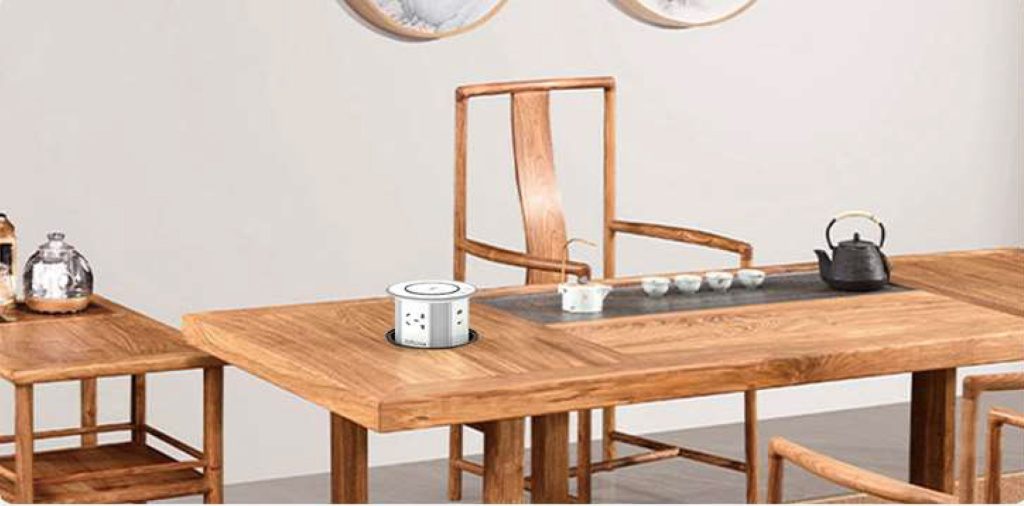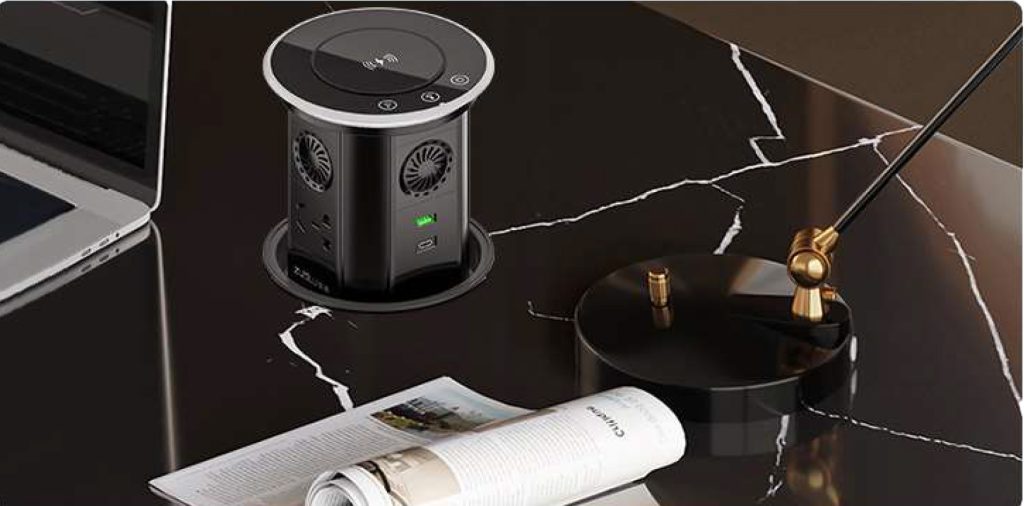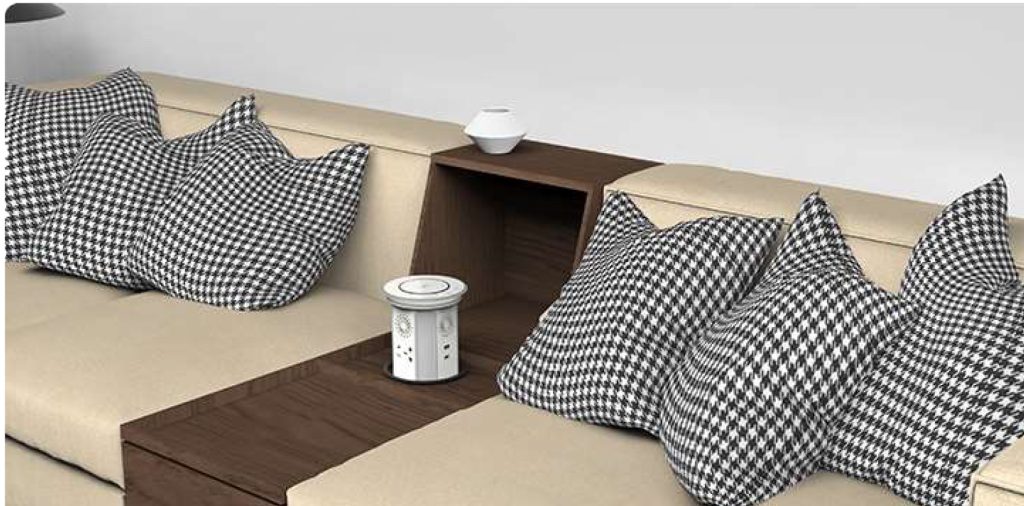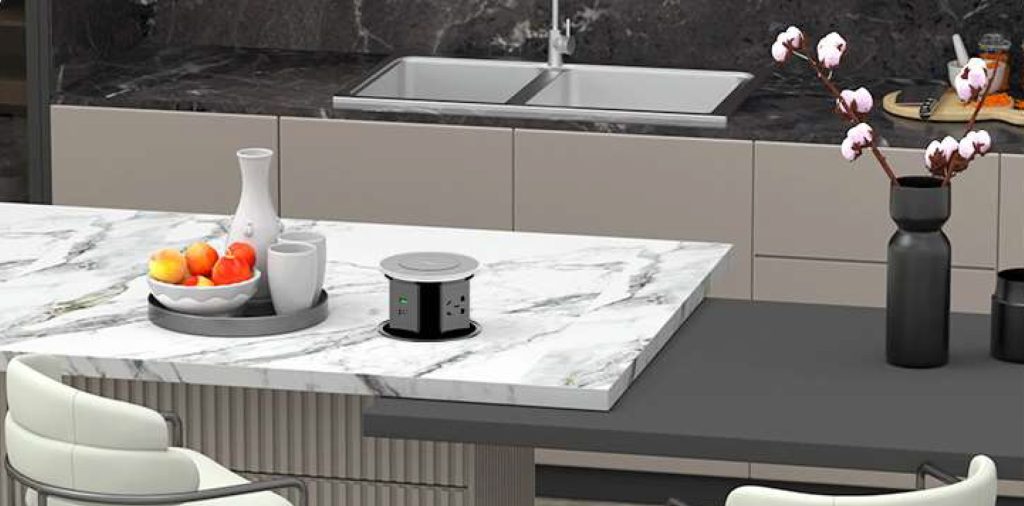
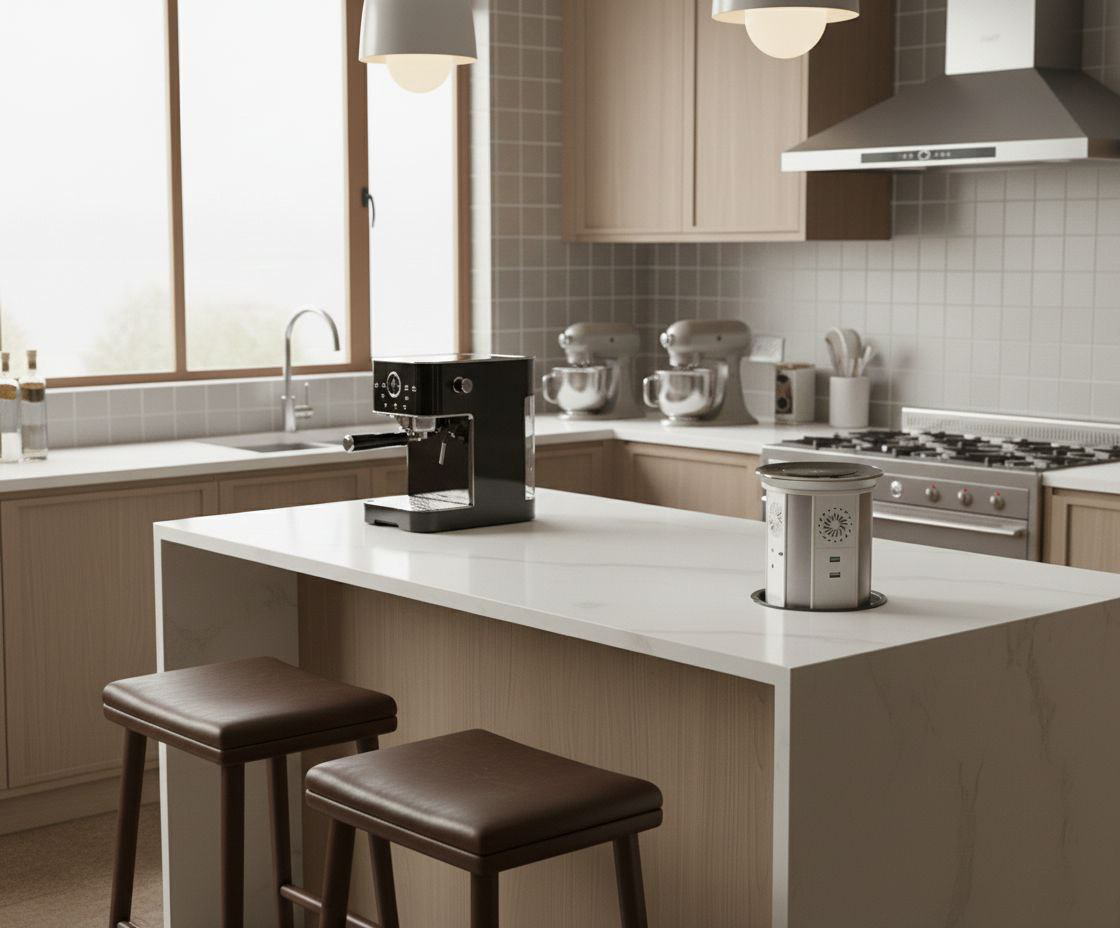
Multifunction WIFI Smart Motorized Pop Up Table Socket
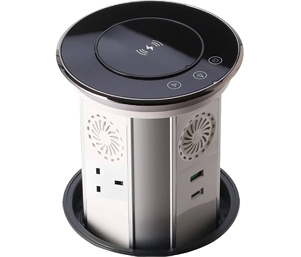
Double-A is specialized in high quality Multifunction WIFI Smart Motorized Pop Up Table Socket manufacturer and supplier. This device has voice-controlled function. When you want to use this function, just wake it up (You can say “HELLO, SOCKET”), then the lamp’s color (located at the face panel center) will changed to blue. Now, you can ask this device to operate listed functions. This lamp (in blue color) will go out automatically after 30 seconds, the voice-controlled function time out. If you want to use it again, just wake it up.
Functional Description

Network Pairing Process
■ Preparation before use:
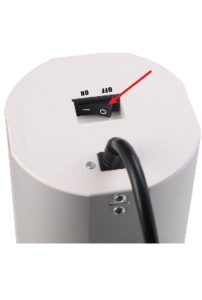
- Ensure the reset switch at the bottom is in the ‘ON’ state.
- Your smartphone or tablet must be connected to a 2.4G Wi-Fi network with internet access.
- Do not hide your Wi-Fi SSID.
- Ensure your router is not configured to “not allow Wi-Fi squatter” or with MAC address restrictions that would block the device.
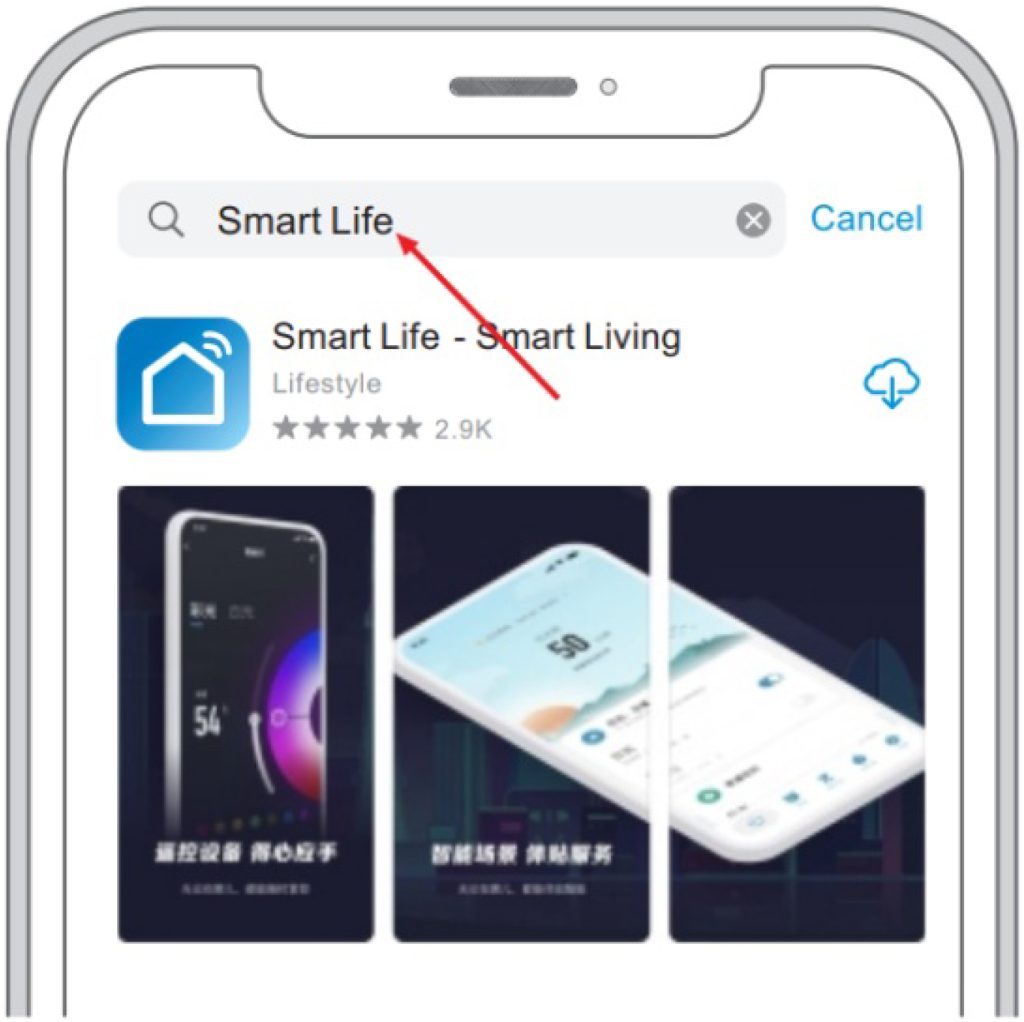
1 – Download APP :
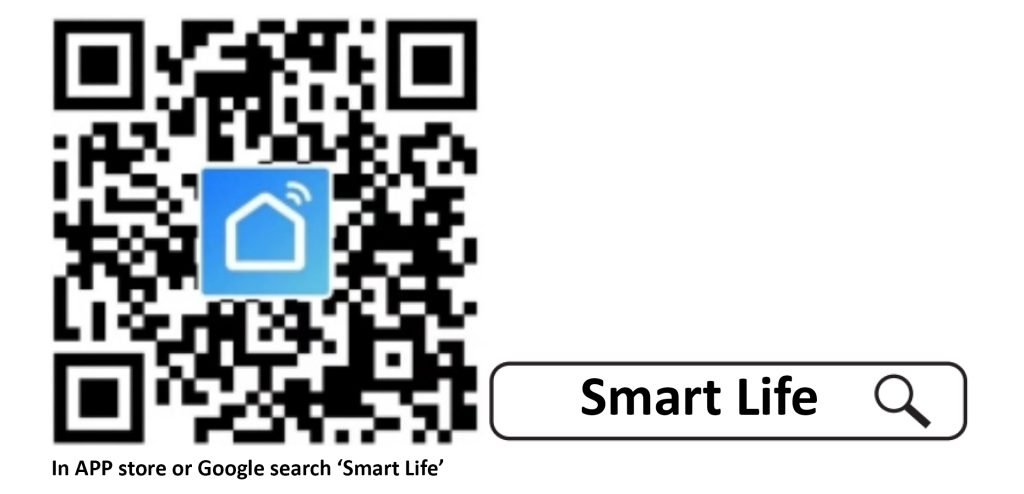
Search for “Smart Life” in your device’s app store or Google Play.
If permission requests appear in the APP, please allow them.
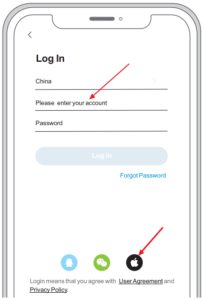
Register an account and log in to the Smart Life APP.
2 – If permission request appears in APP, please allow it :
3 -Register an account and log in :
4 – Connected power supply and turn on the bottom reset switch to “ON” position :
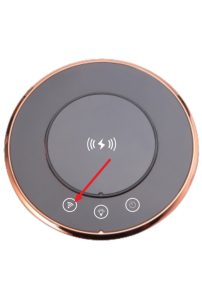
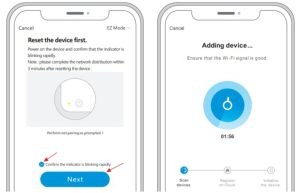
5 – Observe the LED: If the red LED fast blinks (twice a second), is in pairing mode, direct next step. If the red LED is not in fast blinks (twice a second), press the button for 7s until the red LED fast blinks (twice a second).
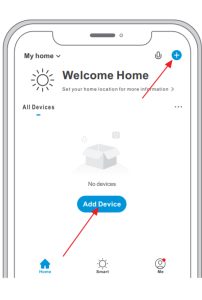
6 – Tap ‘+’ or ‘Add Device’ to add a new device
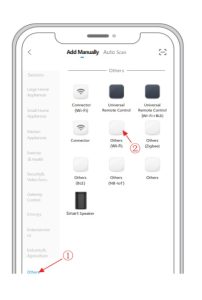
7 – Select ‘Others’ ①-> ‘Others(Wi-Fi)’②
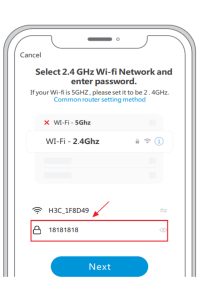
8 – Input your home Wi-Fi password, click ‘Next’
9 -Select ‘Confirm the indicator is blinking rapidly’, click ‘Next’
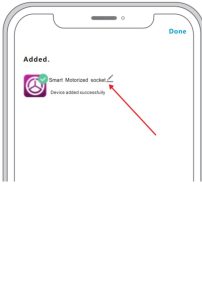
10 -Complete and can rename new device
11 – The control interface appears after successful configuration
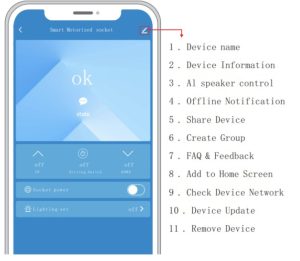
- Device name
- Device Information
- Al speaker control
- Offline Notification
- Share Device
- Create Group
- FAQ & Feedback
- Add to Home Screen
- Check Device Network
- Device Update
- Remove Device
Control Interface :
- Auxiliary function of voice control — wake-up control via voice
(Note: This function is configured according to requirements. See the product markings for details.)
Wake-up control: ‘Hello, smart socket’ ‘Hello ,socket’ (When awakening, the blue lamp in the center of the panel will light up, which can be controlled by voice. After 30 seconds, the blue lamp will turn off automatically.
If need voice control, please awaken again.) Rise and fall: ‘Go up’ ‘Go down’ Light: ‘Turn on the light’ ‘Turn off the light’ Socket module power on/power off :‘Open socket’‘ Close socket’ . - Bluetooth speaker accessories
(Note: This function is configured according to requirements. See the product markings for details.) Bluetooth speaker connection: Open the Bluetooth settings of the phone, find the Bluetooth device “SNZE-A”, and click to connect . - Others
If the Wi-Fi pairing failed: please press the reset switch and then “retry the above steps” or “switch pairing mode” to connect; If fail several times, please check FAQs for details.
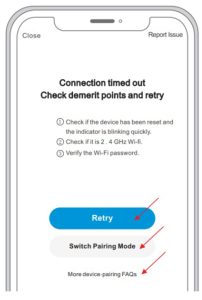
FAQ: Pairing failed, timeout
- Check Wi-Fi password, try again
- Restart Router, try again
- Try Compatible Pairing Mode
- Read Help Center or Fill in the feedback
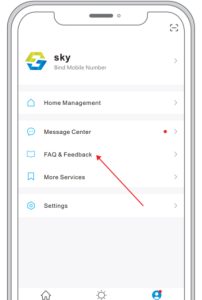
Why the device offline after successful connected?
If this happened, please check it according to following methods:
- Whether the equipment power connected or not?
- Whether the equipment has a power cut or internet cut?
If happened, need 2-3 minutes to reconnected. - Whether the network, where the equipment located stable?
Checking way: Put your mobile or iPad at the same network, then try to open the web page - Whether the home Wi-Fi network is working or not?
If modified Wi-Fi name or password, etc., need to reset the device to re-add. - If the network is working, thus the device still offline, please check whether there are too many Wi-Fi
connected? You can try to restart the router, reset the device power. Then wait for 2-3 minutes to see this device can be online or not?
If all above ways tried and still problem exist, suggest to remove the device, then re-add. If there is still problem, please select the device in APP filled the user feedback and submitted. Our engineer will check it.
Technical Parameters :
- Input Voltage: 110V-250V~, 50Hz-60Hz
- Rated output: 10A, 13A, 15A, 16A
- USB output: DC18W
- Wireless charging: QI/15W
- IP rating: IP65
- Flame retardant rating: UL/V0
- Ambient temperature: -20℃~+50℃
- Open hole dia.: Ø125mm
- Tabletop/countertop thickness: 8mm-60mm
Tabletop/countertop thickness 8mm-60mm
Outline dimension See figures as below
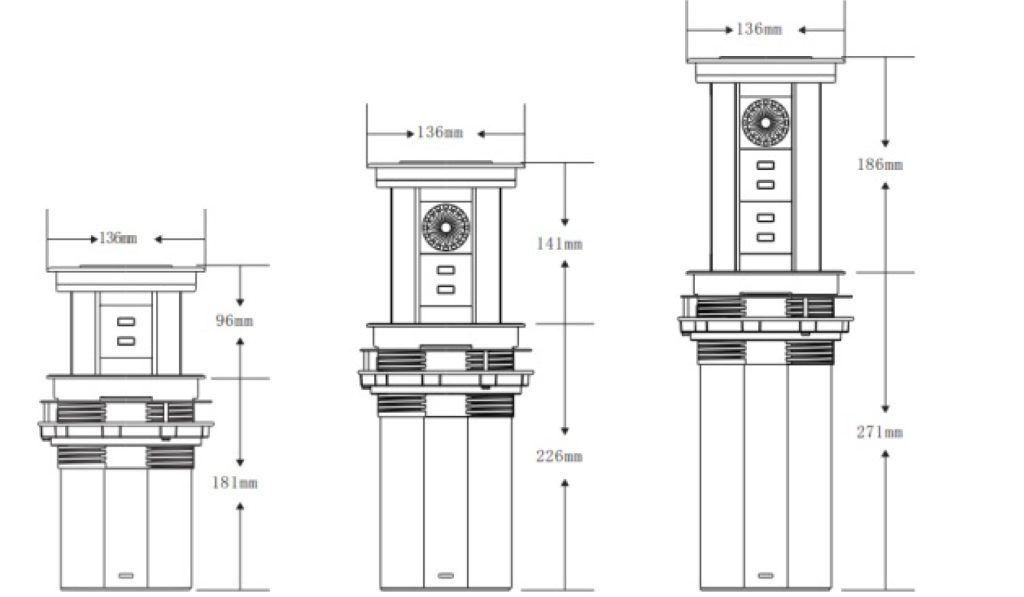
Installation instruction

Installation steps:
- Open the hole according to requested size
- Put the main body in the hole from above
- Install the metal compacting auxiliary ring from below
- Install the clamp ring from below
- Adjust the length of the three screws on the clamp ring according to the actual installation requirement